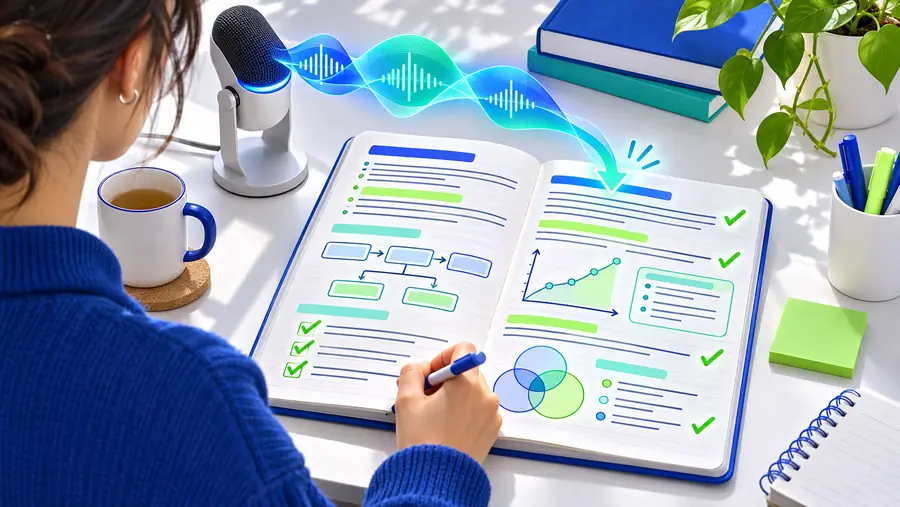
Speech to text

Real-time dictation

Use live speech to text for clear, immediate notes

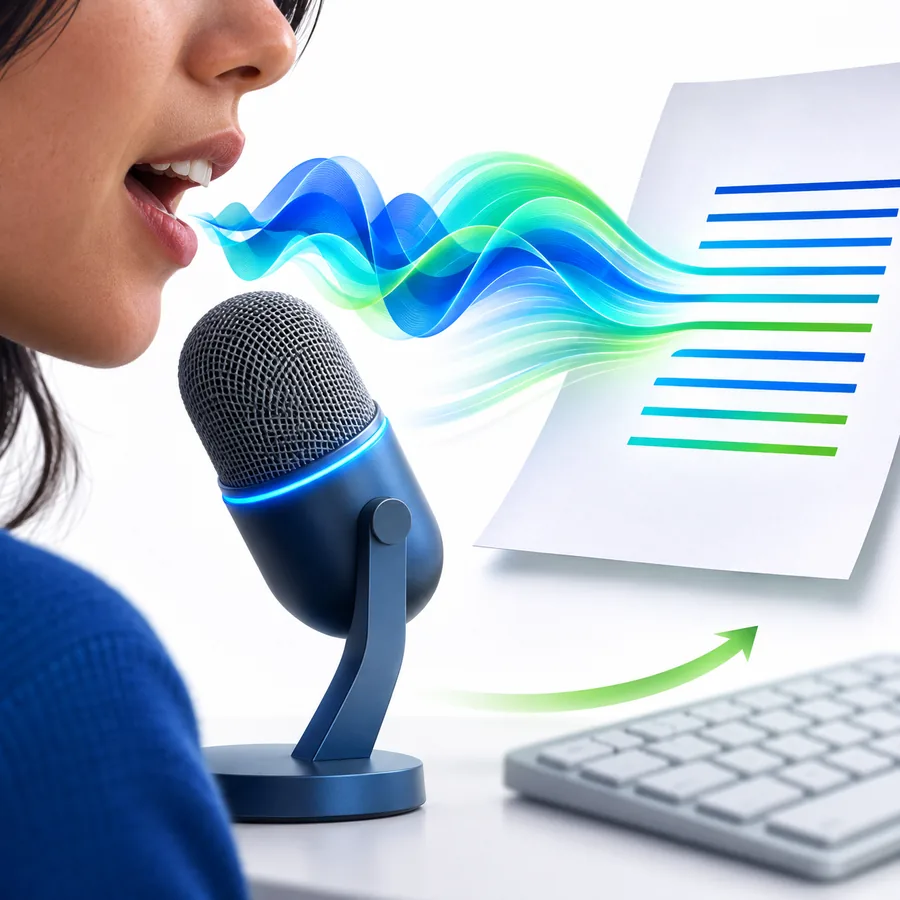
Live speech to text helps you capture spoken ideas while they are still fresh. Open the tool, allow microphone access, and speak naturally while words appear as text.

Speak naturally as you go
A person speaking while spoken words appear as text on screen

Built for spoken work

Prerequisites

A live session needs only a few practical conditions. Preparing them first keeps the first run focused on speaking rather than troubleshooting.

Meeting participants

You need a quick record of decisions, questions, or follow-up tasks while a conversation is happening.

Speak short summaries between discussion points and turn them into organized notes afterward. For longer recordings that already exist, use speech to text transcription instead.
speech to text transcription

Students

You want to capture a spoken explanation, study idea, or question without looking away from your lesson materials.

Keep the session open beside your notes and speak in complete phrases so the resulting text is easier to review. The related speech to text transcription route is better for an uploaded lecture.

speech to text transcription

Writers and planners

Typing interrupts your creative flow when you are outlining an article, drafting a message, or collecting ideas.

Use natural pauses to separate thoughts, then edit the captured text into a polished draft. A live session works best when the goal is immediate capture.

speech to text transcription

Accessibility-focused users

You prefer speaking to typing or need a lower-friction way to enter text into a working document.

Keep the microphone close, reduce background noise, and speak at a steady pace. Saved audio that needs careful review can be handled through speech to text transcription.

speech to text transcription

A simple session

One full run-through

The workflow is short: prepare the microphone, speak in manageable phrases, then review the text before using it elsewhere.

  1. 1

    Allow microphone access

    Open the live tool in a quiet place and approve microphone permission when the browser or device requests it. Choose the intended microphone if more than one is available.

  2. 2

    Speak in clear phrases

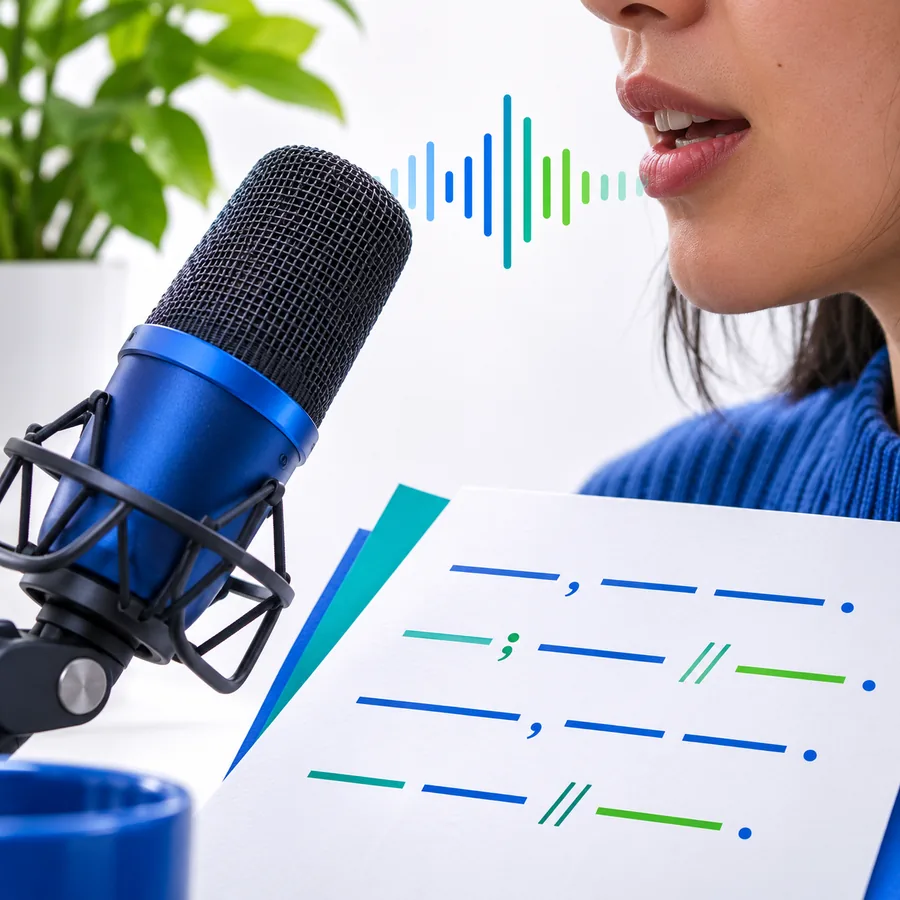
    Start with a sentence or two, pause at natural breaks, and say punctuation or section cues when they matter. Steady speech gives the recognizer more useful audio to interpret.

  3. 3

    Review and reuse the text

    Read the result while the context is fresh, correct names and specialist terms, then copy the useful passage into your notes, outline, or document.

Designed for momentum

Options table

Choose the session style that matches what you are doing. The best option depends on whether you need immediate notes, a short dictated passage, or a reviewable record.

Live spoken notes appearing in a browser workspace During the moment

Step 1

Live notes for an active conversation

Keep the session running while you listen and speak short summaries. This approach is useful when you need the main points immediately and can refine the wording later.

  • Best for decisions, reminders, and action items
  • Use short phrases between discussion points
  • Review names and numbers before sharing
A person dictating a structured draft into a text interface Focused capture

Step 2

Focused dictation for a draft

Work alone in a quieter setting and dictate one thought at a time. This makes it easier to build an outline, message, or rough paragraph without repeatedly switching between keyboard and microphone.

  • Best for outlines and first drafts
  • Pause between ideas to create natural sections
  • Edit the transcript before treating it as final copy

Know the boundaries

What fails

Live recognition is useful, but it is not a substitute for careful editing or a controlled recording setup. These common failure points are predictable and manageable.

1

Heavy background noise

Traffic, music, multiple nearby speakers, or room echo can make words blend together and reduce accuracy.

What to do instead

Move closer to the microphone, choose a quieter room, and mute unnecessary audio sources.

2

Names and specialist vocabulary

People, product names, acronyms, and technical terms may be rendered as similar-sounding words.

What to do instead

Spell unusual terms aloud when needed and review the text before sending or publishing it.

3

Long uninterrupted monologues

A continuous stream can become difficult to scan, especially when the speaker changes topic without pauses.

What to do instead

Pause at topic changes and use spoken cues such as “new section” or “action item.”

4

Unstable microphone access

Permission blocks, a muted input, or another application using the microphone can stop a session from capturing speech.

What to do instead

Check site permissions, confirm the selected input, and run a short test before beginning.

Choose your mode

Use the right live setup

Different settings call for different speaking habits. Select the panel closest to your situation before you begin.

Structured notes captured during a live discussion

Meetings

Capture decisions, not every word

Use live speech to text to speak concise summaries as a meeting progresses. The output is easier to use when you focus on decisions, owners, dates, and open questions instead of trying to reproduce every exchange.

  • Summarize after each agenda item
  • Say names and dates slowly
  • Mark follow-ups with a consistent phrase
Study notes created from spoken explanations

Study

Turn spoken explanations into review notes

For study sessions, speak definitions, examples, and questions in separate phrases. A short pause between concepts creates a more readable starting point for later revision.

  • Name the topic before explaining it
  • Pause between definitions and examples
  • Check formulas and terminology afterward
A rough spoken draft organized into readable text

Drafting

Get ideas out before polishing them

Dictate a rough structure first, then edit for tone and clarity. Speaking can help you maintain momentum, but the first captured version should be treated as working text rather than finished copy.

  • Start with a clear purpose
  • Use pauses to separate paragraphs
  • Edit repeated words and filler phrases

When typing slows you down, start a live session and speak the idea while it is fresh. Review the result, keep the useful parts, and continue from a written starting point.

Turn your next thought into text

  • Speak in short, reviewable phrases
  • Use a quiet microphone setup
  • Edit names and technical terms
Start live dictation

Common questions

FAQ

Live speech to text converts spoken language into written text while you are talking. It is intended for immediate capture, such as dictating notes, outlining ideas, or recording key points during a conversation.

Open the tool, allow microphone access, confirm that the intended input is selected, and begin speaking in clear phrases. Start with a short test sentence so you can catch permission or microphone problems before continuing.

Accuracy can drop when there is traffic, music, echo, or several people speaking at once. Move closer to the microphone, reduce competing sound, and review the resulting text for names, numbers, and technical terms.

Yes, it can help capture summaries, definitions, decisions, and action items during a meeting or class. For the clearest result, speak in short sections and treat the text as notes that should be checked afterward.

Live speech to text produces text as speech happens, so it is useful when you need immediate notes. Transcription generally refers to processing a recording or longer source after the speech has already been captured, making it better suited to later review.

Start voice typing
Start voice typing