Students
Capture a quick thought after class or dictate a rough assignment outline while walking between activities.
The spoken draft becomes searchable text that can be corrected, reorganized, and expanded later.
iPhone guide
If you are asking what is speech to text on iphone, the short answer is simple: your iPhone listens to spoken words and turns them into written text you can review, edit, and share.

What it delivers
On iPhone, useful voice input is more than a transcript. It should give you readable text, preserve the intended meaning, and leave you in control before anything is sent or saved.
Capture a quick thought after class or dictate a rough assignment outline while walking between activities.
The spoken draft becomes searchable text that can be corrected, reorganized, and expanded later.
Dictate meeting actions, follow-up ideas, or a short email when typing on a small screen is inconvenient.
You get a usable first draft without losing the context or sequence of the original thought.
Speak notes, reminders, or messages instead of composing every sentence with the keyboard.
Voice becomes a practical input method while the final wording remains editable.
Use spoken input to reduce the amount of sustained typing required for everyday writing.
Longer ideas can be entered in smaller, more manageable sections and reviewed at the user's pace.
Related paths
Choose the route that matches how you want to capture, clean up, or reuse spoken language on a mobile device.
Visual check
The goal is not merely to see words appear. A good result is easy to scan, close to the speaker's meaning, and ready for a final human review.
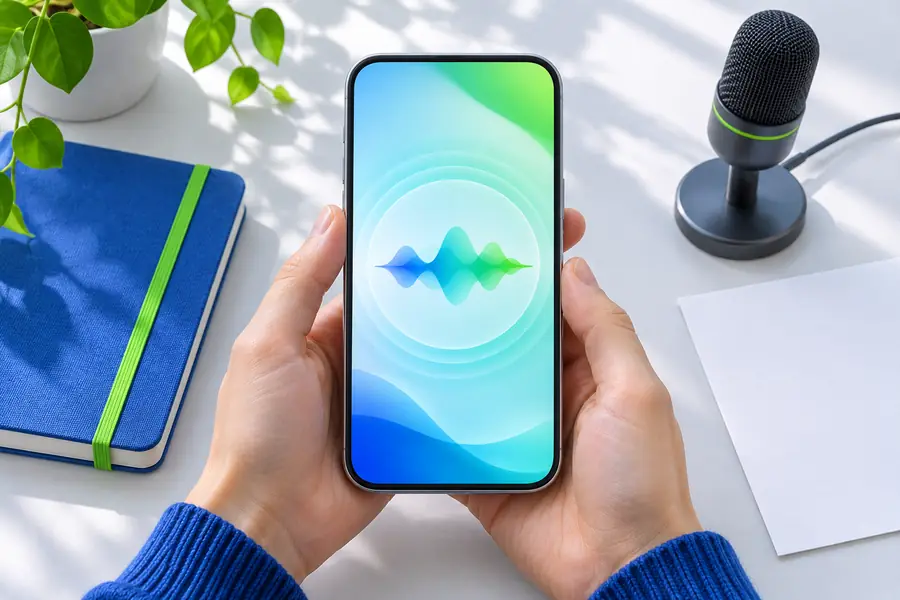
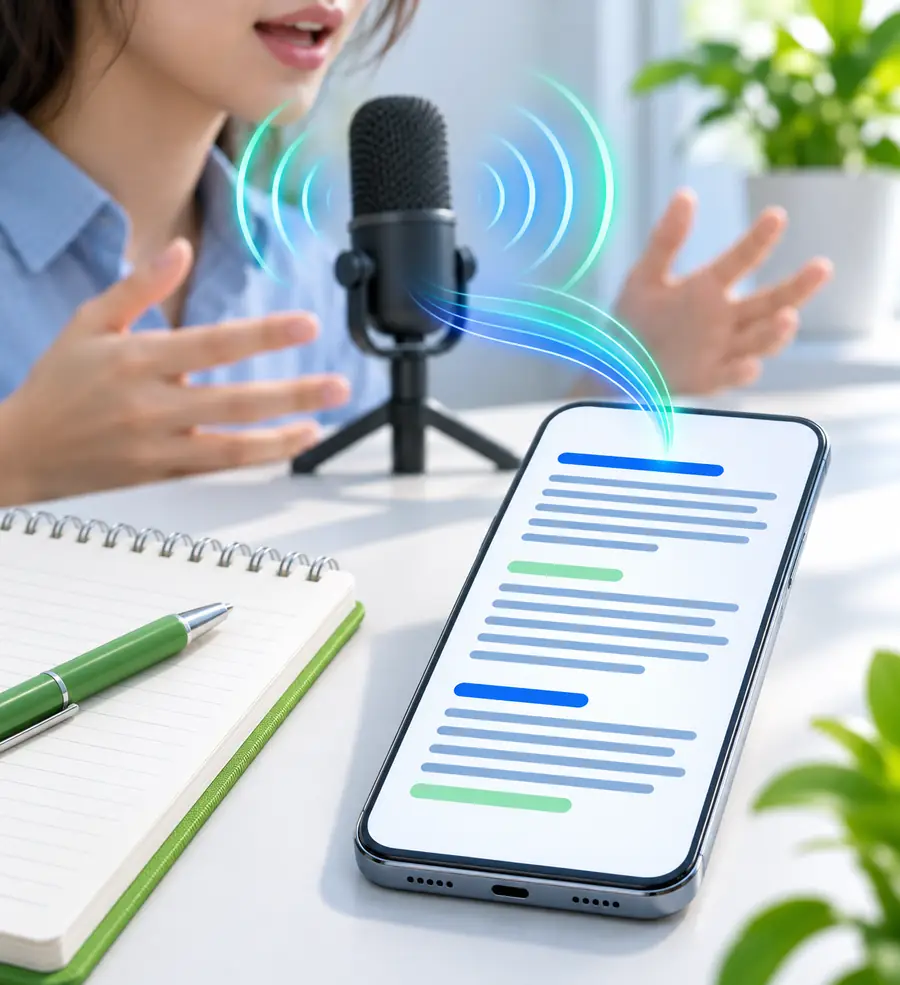
Before sending a message or saving a note, check names, punctuation, numbers, and words that sound alike.
Spoken draftReviewed textSide-by-side view
iPhone voice input is strongest for getting ideas onto the screen quickly. The comparison below shows where spoken input helps and where a review step still matters.
| Voice input on iPhone | Typed or reviewed text | |
|---|---|---|
| Starting speed | Fast to begin when the phone is already in hand | Slower to start for longer passages |
| Editing | Requires a review after dictation | Edits happen during composition |
| Long ideas | Useful when typing becomes tiring | Often easier to structure as you write |
| Names and numbers | May need careful verification | Can be checked while entering |
| Privacy awareness | Requires attention to the surroundings | Can be entered silently |
| Best final state | A reviewed draft ready for editing | A polished message or document |
Example outputs
These examples show how a spoken request can be framed before it becomes a clean note, message, or short piece of working text.
Turn this spoken note into a concise task list: call the dentist, send the draft, and confirm Friday's meeting.
 Tasks
result
Write this as a friendly message: I am running ten minutes late, but I will be there before the presentation starts.
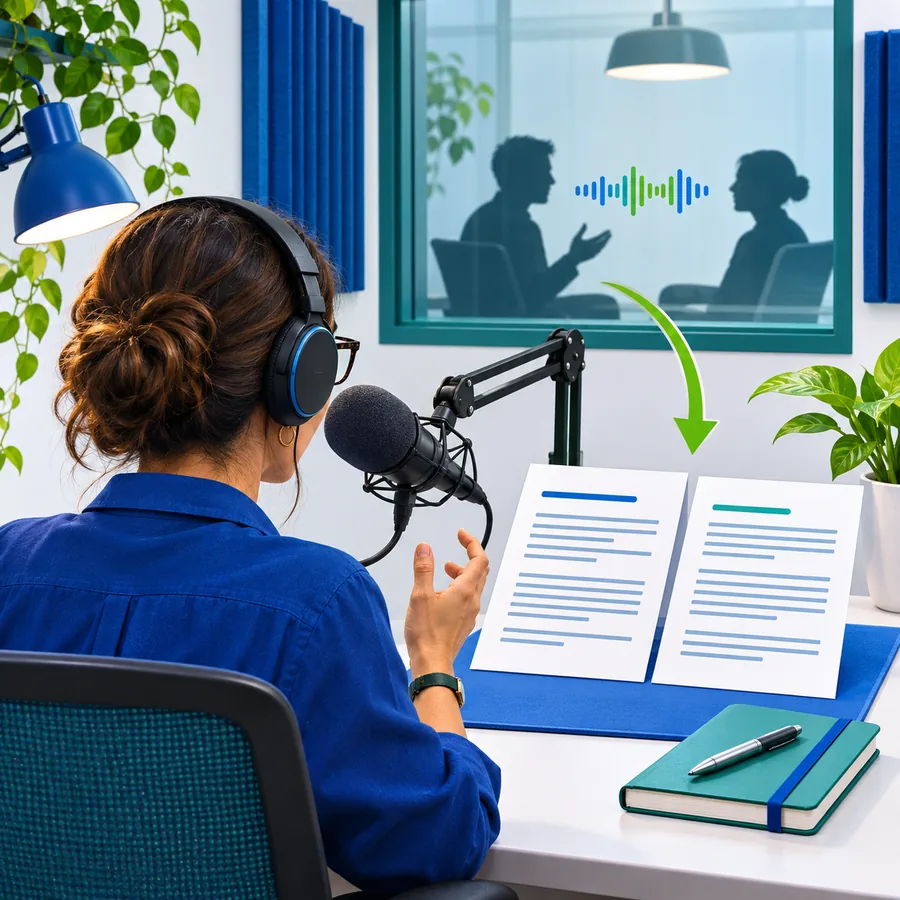 Message
result
Organize this spoken explanation into three study points with a short heading for each point.
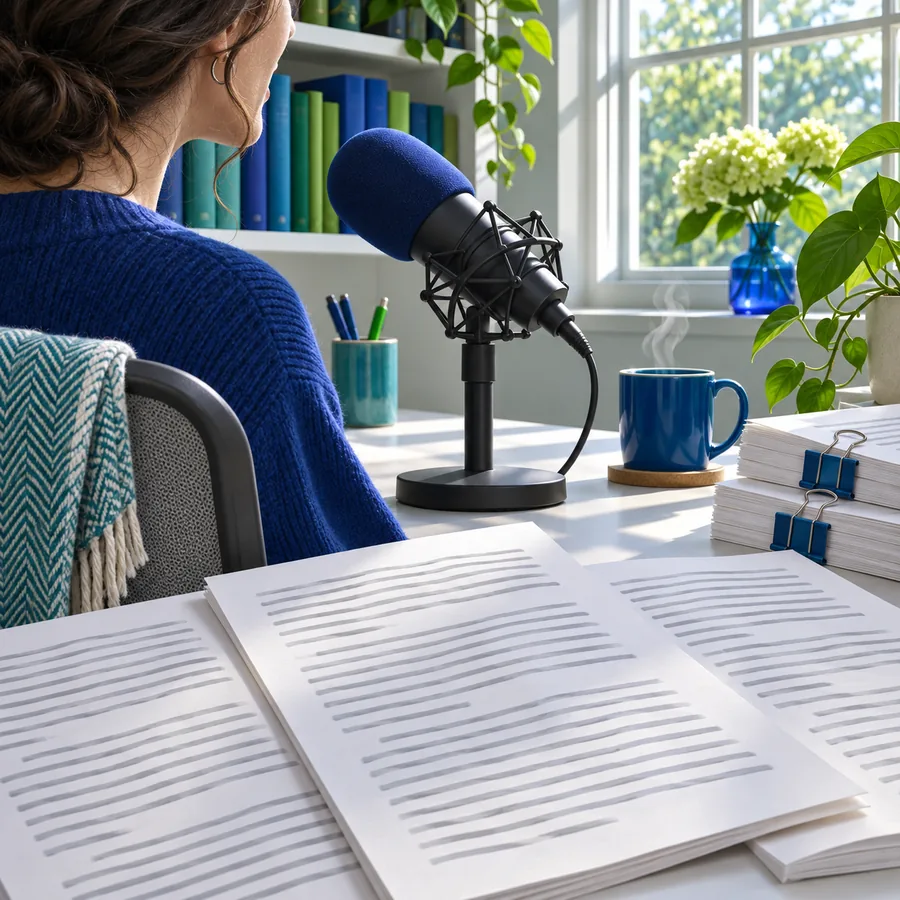 Notes
result
Keep the spoken request specific, then review names, punctuation, dates, and any words the phone may have heard incorrectly.
Practical workflows
A small review routine makes mobile voice input more dependable without turning a quick note into a lengthy editing project.
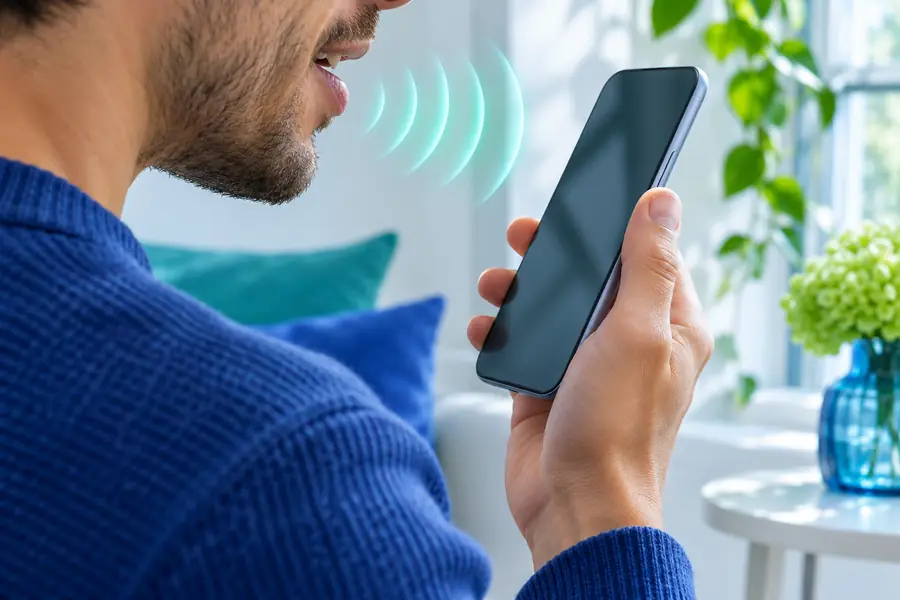
Start with a clear sentence and pause between separate ideas. Shorter spoken segments are easier to inspect when the result appears on screen.
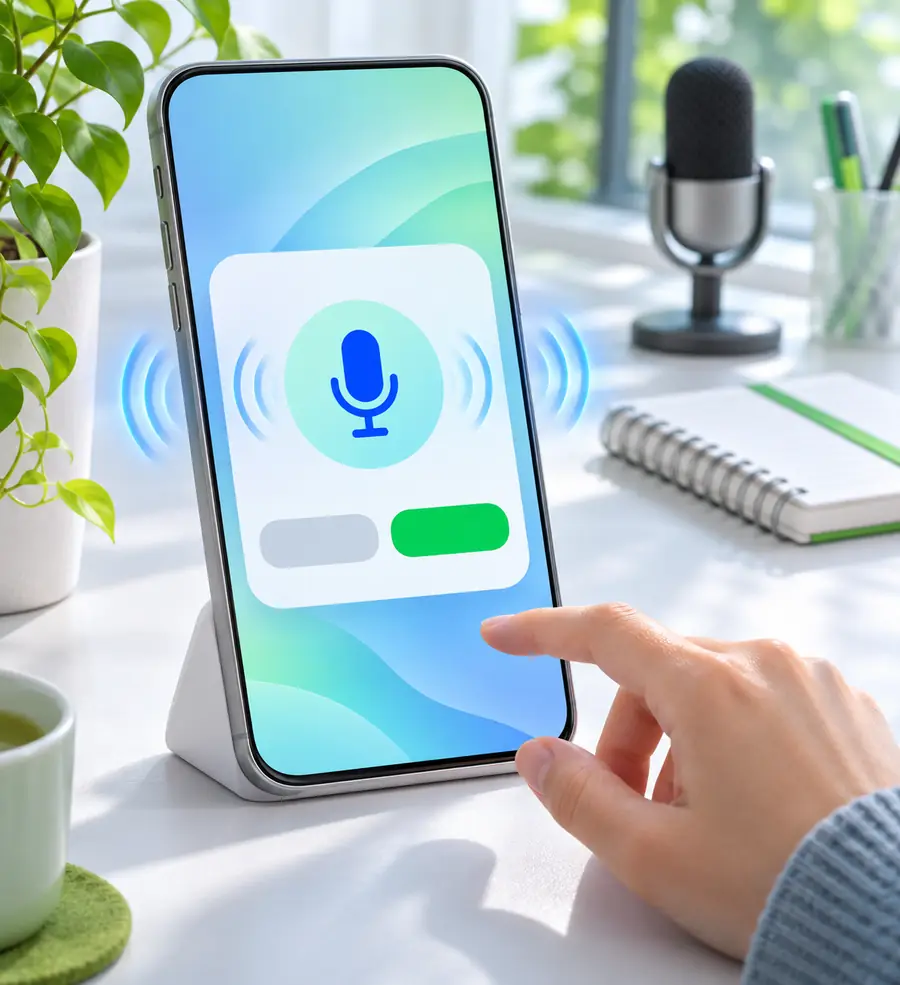
Read the result instead of assuming every word is correct. Give extra attention to names, email addresses, numbers, punctuation, and similar-sounding terms.
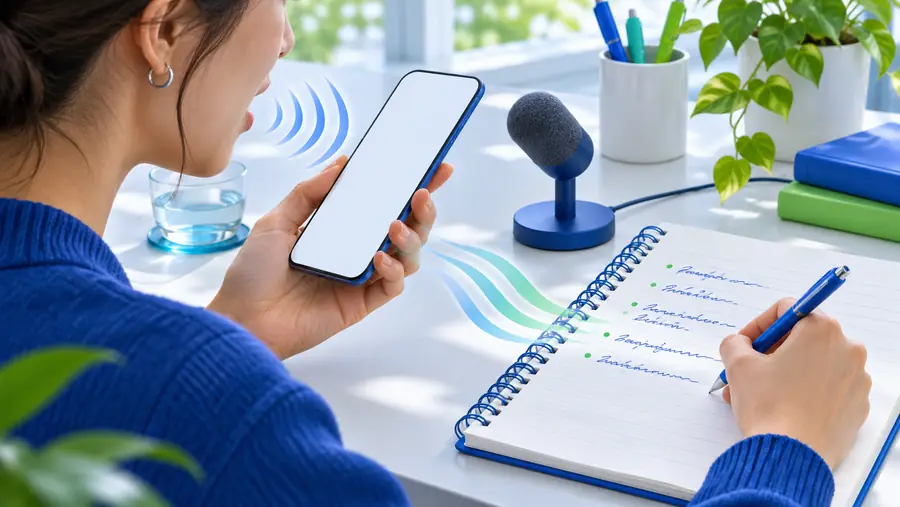
Once the wording is accurate, treat it like any other text. Edit the tone, copy it into a message, or use it as the starting point for a longer document.
At a glance
A dependable iPhone voice-input result can be judged with three practical checks before it leaves the device.
Put it into practice
Speech To Text gives you a practical starting point for turning spoken ideas into editable writing. Speak naturally, review the result, and use the cleaned text wherever your next task belongs.
Your questions
Here are direct answers to the main iPhone question behind this guide.
Speech to text on iPhone is a voice-input function that changes spoken words into written characters. You speak into the phone, and the resulting text can usually be reviewed, edited, saved, or shared in the app where you entered it.
The iPhone uses its microphone to capture your voice and language processing to interpret the words. The interpreted text appears in the active writing field, where you can correct mistakes and add formatting.
No. A voice recording stores audio, while speech to text produces written words from that audio or live speech. A written result is easier to search, edit, copy, and place into a message or document.
Accuracy can be affected by background noise, speaking speed, accents, unclear pronunciation, microphone access, and words that sound alike. Names, numbers, and punctuation should always be checked before the text is used.
Yes, it can be useful for longer ideas when you speak in clear sections and pause between points. For important notes, review each section as you go so a small recognition error does not carry through the entire draft.