
Speech to text

Browser workflow

Speech to Text Online for Clearer Notes

Speech to text online helps you capture a thought, draft a message, or record useful notes without stopping to type every word. Start with a focused prompt and hand off when you are ready.

Start with a focused prompt
Browser-based voice to text workspace

Three ways to work with spoken words

The best online workflow depends on what you are trying to finish. Use the browser for quick capture, structured notes, or a first draft you can refine.

Students

Capture a lecture idea or explain a difficult topic aloud before organizing it into study notes.

You keep the original thought and create a more usable draft with less interruption. For a phone-first workflow, see the speech to text app for a dedicated mobile experience.
speech to text app

Writers and researchers

Speak a rough outline, interview observation, or research summary while the idea is still fresh.

A browser session gives you editable text to sort, trim, and shape into a draft. The speech to text app is another option when your notes begin away from your desk.

speech to text app

Teams and professionals

Dictate action items, follow-up messages, or a meeting recap after a conversation.

You move from voice to a reviewable document without rebuilding every sentence by hand. A speech to text app can suit teams that capture updates while moving between locations.

speech to text app

Choose the right online setup

A browser session and a dedicated app can both support speech to text, but they suit different moments. This comparison keeps the choice practical.

Browser session Dedicated app
Best for Quick capture from a computer or mobile browser Repeated use during a mobile routine
Setup Open the supported web experience and allow microphone access Install and configure the app before regular use
Input style Speak directly when the browser is convenient Use a phone-centered workflow for frequent dictation
Editing Review text in the same online workspace Review text inside the app or its connected workflow
Device context Useful when you move between available browsers Useful when one mobile device is your main capture tool
Privacy check Review browser microphone and site permissions Review app permissions and device settings

Limits and edges to know before you start

Online voice capture is useful, but it is not a substitute for review. These caveats help you choose the right task and avoid surprising results.

1

Background noise can change the text

Fans, traffic, overlapping speakers, and room echo can make words less clear or cause omissions.

What to do instead

Use a quieter space, speak near the microphone, and review names, numbers, and technical terms.

2

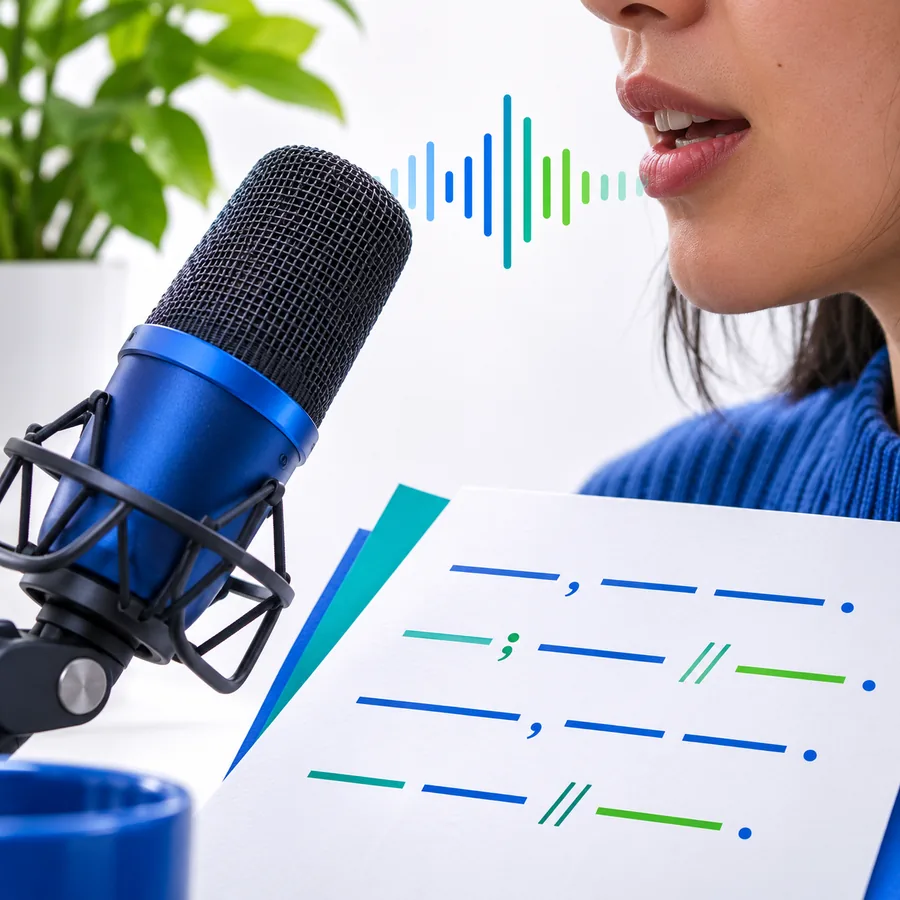
Punctuation may need a pass

Natural speech does not always indicate where a sentence, heading, or list should end.

What to do instead

Say the structure aloud or edit the first draft into shorter paragraphs and labeled points.

3

Specialized vocabulary may be inconsistent

Industry terms, names, abbreviations, and uncommon words can be captured imperfectly.

What to do instead

Keep a source reference nearby and check every term that affects meaning.

4

A browser still depends on device access

Microphone permissions, browser settings, connectivity, and device audio can affect the session.

What to do instead

Check permissions before speaking and keep a short written outline if the task is important.

Make the first draft easier to use

A good online workflow is more than capturing words. It gives you a clear starting point and a simple way to shape the result.

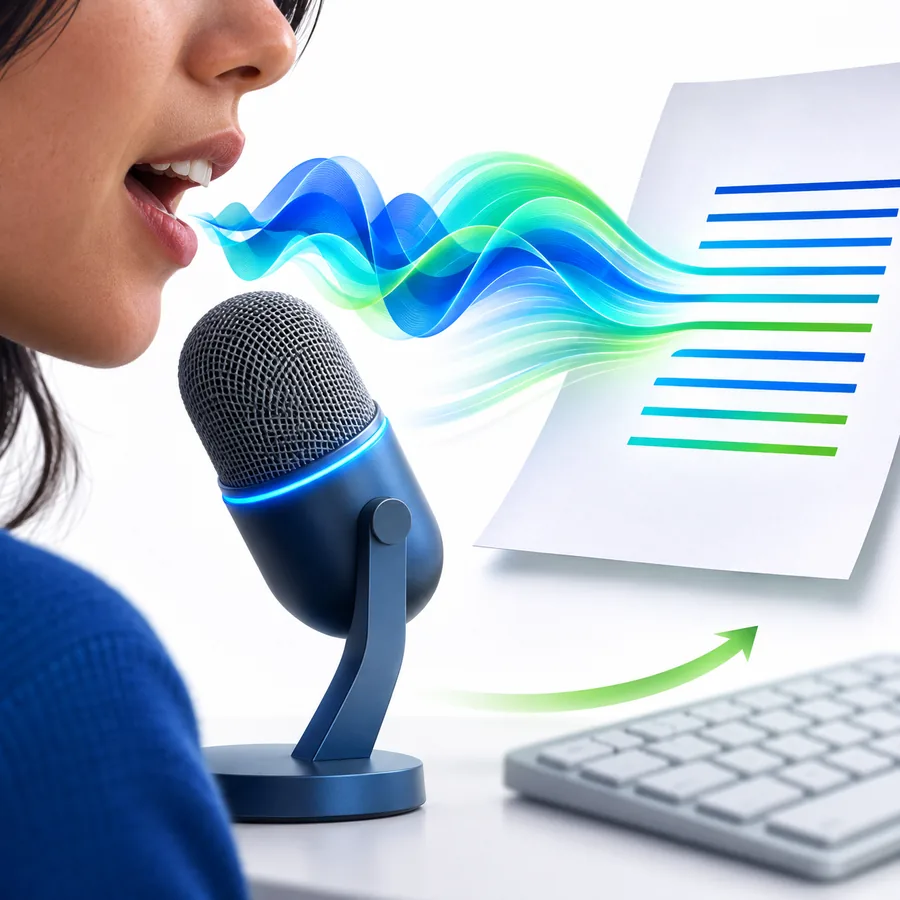
Spoken notes becoming an organized text draft 01

Step 1

Start with the outcome, not just the audio

Tell the workspace what you want the spoken material to become. A meeting recap, study outline, or concise message gives the draft a useful direction from the beginning.

  • Name the intended format
  • Mention the audience or purpose
  • Keep the first instruction specific
Editing and reviewing a voice to text result 02

Step 2

Review the details that carry meaning

Once the words are captured, focus your review on the parts that are easiest to misread: names, dates, figures, quotations, and specialist language. The result becomes more dependable when editing follows the context.

  • Check names and numbers first
  • Split long passages into sections
  • Keep the original meaning intact

Use the workflow for different kinds of work

Choose a starting pattern that matches your audience, then adapt the wording after the first pass.

Study

Turn spoken explanations into study material

Explain a concept aloud, then shape the captured text into a definition, outline, or set of review prompts.

  • Speak in short topic blocks
  • Mark examples as you go
  • Review technical terms

Work

Create practical notes after a meeting

Dictate decisions, owners, and follow-up items while the conversation is still easy to remember.

  • Separate decisions from ideas
  • Call out dates and responsibilities
  • Edit before sharing

Personal

Capture ideas before they disappear

Use an online session for reminders, journal drafts, travel notes, or messages that are easier to say than type.

  • Start with the main thought
  • Add context while it is fresh
  • Keep the final version concise

What you need for a smooth session

Prepare the basics before you speak. The required items support access and audio quality; the optional items make review easier.

Required Optional
  • A supported browser or device with microphone access — Required for direct voice capture.

  • Permission for the site to use the microphone — Check the browser permission prompt before speaking.

  • A reasonably quiet place to record — Clear audio makes review easier.

  • A clear goal for the resulting text — Decide whether you want notes, a draft, or a structured summary.

  • A short outline of names, terms, or figures to verifyoptional — Useful for technical or detail-heavy work.

  • Headphones or an external microphoneoptional — Helpful when the device microphone is distant or noisy.

Open the online workflow, describe the result you need, and review the captured text while the context is still fresh. Keep the first task focused so the output is easier to shape.

Turn your next spoken idea into a working draft

  • Start with one clear task
  • Review important details
  • Refine the draft for its audience
Convert my spoken notes

Speech to text online questions

These answers cover the practical questions people ask before using an online voice-to-text workflow.

Speech to text online is a browser-based way to turn spoken words into editable text. It can help with notes, drafts, reminders, and other tasks where speaking is more convenient than typing.

Open the online workspace, allow microphone access, and speak clearly about the task you want to complete. Review the resulting text afterward, especially names, numbers, punctuation, and specialized terms.

A phone browser may work when the device, browser, and microphone permissions support the session. If you regularly dictate on mobile, compare that workflow with a speech to text app and choose the surface that fits your routine.

Noise, echo, distance from the microphone, and overlapping speakers can reduce clarity. A quieter setting and a review pass can improve the usefulness of the captured text, but important details should still be checked.

You can turn it into notes, a rough message, a study outline, a meeting recap, or another editable draft. The best result comes from stating the intended format and then revising the text for accuracy and audience.

Start voice typing
Start voice typing